
Auto Tracking vs Auto Framing Webcams Explained
Compare auto tracking vs auto framing webcams. Check pan and tilt, digital zoom, autofocus, group modes and software before choosing a camera for calls.
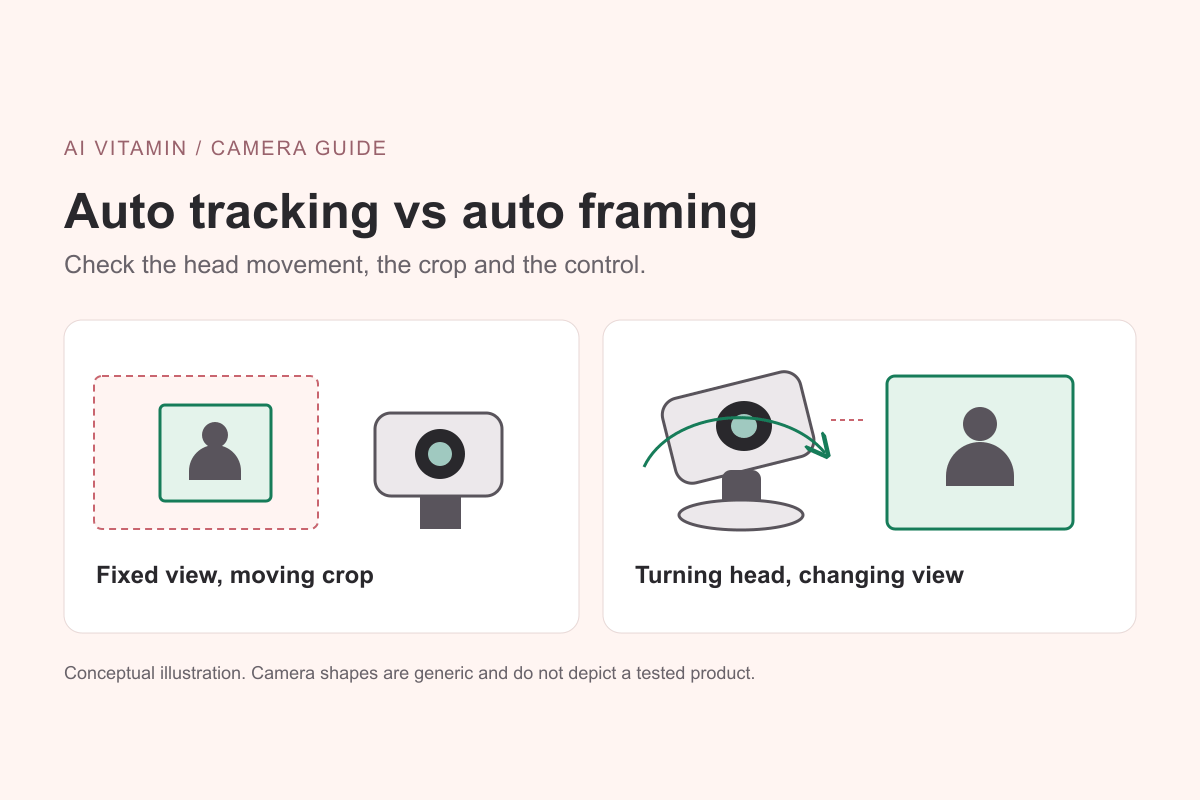
An auto tracking webcam can keep you in view by turning its camera head. An auto framing webcam can keep you centered by moving a crop within a wider image. AI webcam tracking and framing can combine those methods in one device. Start with where you will sit or walk, then check how the specific model changes the shot.
We checked OBSBOT's product specifications, support pages and Meet 2 manual on October 14, 2026. The OBSBOT Tiny 3 provides the motorized example in this guide. Meet 2 provides a fixed-camera example from the manufacturer's documentation. This is a comparison of documented mechanisms, with a checklist you can try yourself. We have not measured tracking accuracy, recovery time or image quality.
Pan and Tilt, Digital Crop, and Autofocus
Pan turns a camera left or right. Tilt points it up or down. A motorized head can change which part of the room the lens sees while the base stays on your monitor or tripod. PTZ stands for pan, tilt and zoom, but the zoom mechanism needs a separate check.
The Tiny 3 specifications list a two-axis gimbal and 1x to 4x digital zoom. The head physically turns; zoom selects a smaller portion of the image. Buying a PTZ webcam therefore does not automatically give you optical zoom.
Auto framing on a fixed camera adjusts the composition inside the available view. It can shift a crop toward a person, tighten the shot or widen it for a group. The lens continues pointing in the same direction. Microsoft's Windows Studio Effects documentation gives another example of automatic framing that crops and zooms around a detected person.
Autofocus controls sharpness at the subject's distance. A camera can focus on your face while leaving you near the edge of the picture. It can also center you while focus is set manually. The Meet 2 manual describes autofocus and manual focus separately from auto framing.
PTZ Webcam vs Auto Framing at a Glance
| Mechanism and example | Does the head turn automatically? | Original field of view | Digital crop or zoom | One person or a group | How to stop automatic movement |
|---|---|---|---|---|---|
| Motorized tracking with OBSBOT Tiny 3 | Yes, pan and tilt through a two-axis gimbal | Listed diagonal FOV is 74° at 16 by 9, or 82.4° at 4 by 3; turning changes the viewing direction | Listed digital zoom is 1x to 4x; Auto Zoom can adjust framing while tracking | Human tracking and Group Tracking are documented | Toggle AI tracking with a supported gesture or voice command; check Auto Zoom and command settings separately |
| Fixed-camera framing with OBSBOT Meet 2 | No motorized tracking head | Listed diagonal FOV is 79.4°; automatic framing stays within the captured view | The manual lists 1x to 4x digital zoom and single or group framing | Single mode chooses the nearest person; Group mode includes multiple people | Use the auto-framing gesture to exit; the manual identifies green as the resulting status light |
These are model-specific examples. Manufacturers use tracking and framing labels differently, and one device may combine several methods. The FOV figures also use different aspect-ratio descriptions, so they are not a direct width ranking. Check the full uncropped preview at your intended distance.
Digital Zoom Uses Part of the Image
A tighter digital crop leaves less of the captured image available for the output. As a simplified calculation, a 2x linear crop from a 3840 by 2160 frame uses a 1920 by 1080 region. A 4x crop uses a 960 by 540 region before any resizing. This illustrates the geometry only. It does not describe the internal processing of either webcam or predict how a video call will look.
A 4K output setting alone tells you little about detail after cropping. Check whether a label or small object stays readable in the final call window at the zoom level you need.
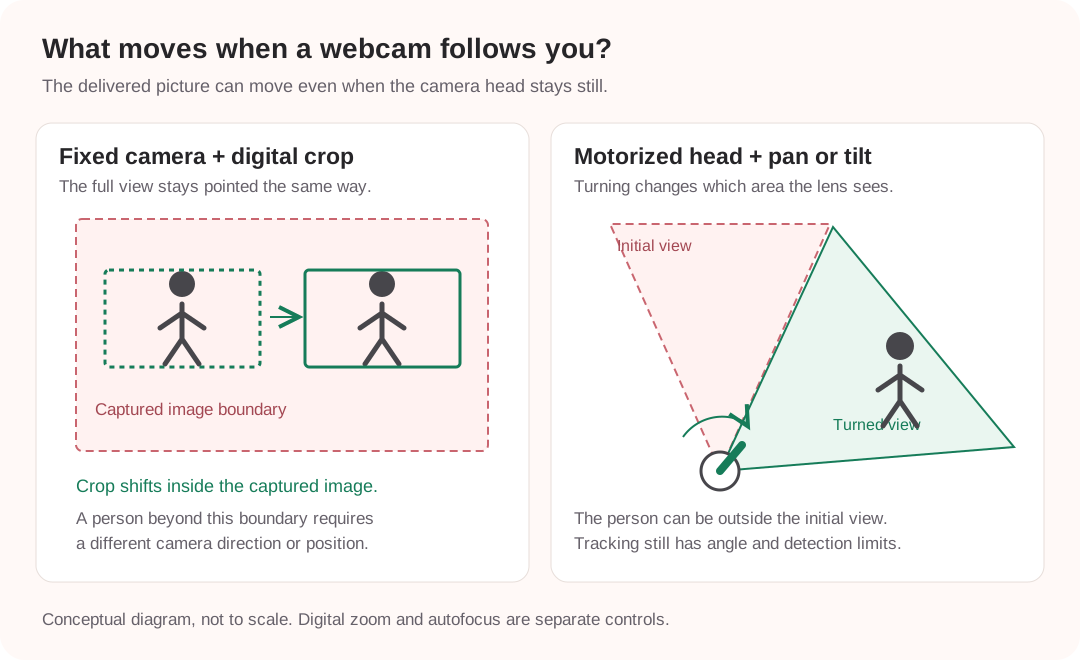
The green rectangles show possible delivered crops inside one fixed view. In the right panel, the camera turns toward a person outside its initial view. The drawing is conceptual and is not to scale. It does not show either model's maximum tracking range. View the diagram at full size.
What Happens When You Leave the Frame
Leaving the delivered picture and leaving the camera's entire view are different events. If you step outside a tight crop but remain inside the captured image, fixed-camera auto framing has room to follow. Once you move beyond that image, adjusting its crop cannot bring you back.
A motorized tracking webcam can turn toward another part of the room, within its control limits. Occlusion and target selection still affect whether it follows you. Maximum pan travel gives no assurance that the camera will recover every person it loses.
OBSBOT's Tiny 3 product page describes Zone Tracking, including a tracking range defined by four gimbal angles and up to three areas where tracking pauses. It also describes handing tracking to a new target when the original subject leaves the defined range. Read those mode descriptions before assuming that tracking will always stay with the same speaker.
Ask for a demonstration that includes leaving a tight crop, walking past the original view and returning after being briefly hidden. Record the selected mode and what the camera does at each point. Recovery behavior belongs in that demonstration, even when a product description says it keeps you in frame.
Choose by Desk, Whiteboard, or Group Use
A Seated Desk Call
For a seated call, check whether leaning back or shifting in your chair fits inside the uncropped view. Fixed-camera auto framing may cover that movement. If you want the same shot throughout the call, try a manually chosen view too.
Check your surroundings in both the tight and wide views. Automatic framing can reveal more of the room when it zooms out, so place anything you want kept off camera outside the widest view you plan to allow.
A Whiteboard or Standing Presentation
Motorized pan and tilt become more relevant when your desk and presentation area require different viewing directions. OBSBOT's Tiny 3 launch announcement identifies Whiteboard Mode and Desk Mode as Tiny 3 features, with both excluded from Tiny 3 Lite. Keep the exact model name on your buying checklist.
Decide what needs to stay visible during the explanation. Following your face can crop away the edge of a board. Try a fixed board view or a mode that pauses tracking in that area, then check the smallest writing in the final call feed. A readable board and a well-framed presenter are separate requirements.
For available devices in this part of the directory, browse cameras and creative devices. Use the Tiny 3 product details and official sources to check its specific controls before choosing it for a presentation space.
Several People Sharing One Webcam
Choose whether the shot should include everyone or concentrate on one person. The Meet 2 FAQ says Single-person mode centers the nearest person, while Group mode frames multiple people. That distinction matters when somebody leans closer to the camera.
Tiny 3's documented Group Tracking keeps a primary target while expanding the view to include additional people. A feature that selects a speaker and a feature that keeps a group visible serve different purposes. Ask to see the mode you will use with people seated at the positions you expect, including the outer seats.
Watch what happens when somebody joins or leaves. Then listen to a person speaking from the edge of the seating area. Framing support alone does not establish that the built-in microphones suit your room.
Check Controls and Software Requirements
Find the Off Switch Before the First Call
The Meet 2 manual documents a gesture that switches auto framing on or off. On exit, its indicator changes from purple to green after flashing. It also allows manual zoom through OBSBOT Center. Stopping auto framing and returning to the widest view can therefore require separate actions.
Tiny 3 supports gesture and voice controls for tracking. Its FAQ says Voice Control can be disabled in OBSBOT Center's Voice Control settings. That setting controls voice commands. Check the tracking and zoom controls too when you want a fixed shot.
Stopping visual tracking also differs from muting the microphone. The same FAQ says microphone behavior during sleep can be configured in the audio settings. Check video and audio separately before treating a sleep state as complete privacy.
Check the Computer and the Camera Feed
The Tiny 3 download page lists OBSBOT Center for Windows 10 64-bit or later and macOS 11.0 or later. Check the camera's separate recommendations for the resolution and effects you intend to use. The minimum operating system alone does not establish support for every optional effect.
OBSBOT describes Meet 2's basic video use as plug and play, with Center providing additional settings. Basic video output, access to a setting and continued operation after closing the companion software are separate questions. We did not test software persistence for these devices. Before buying for a managed work computer, ask which settings require installation and whether your selected mode continues after Center closes. Request an answer for the current firmware and your operating system.
If a picture still moves after you turn off the webcam's feature, check the other framing settings available to your selected camera. On supported Apple setups, Center Stage has its own control. Microsoft's Studio Effects support guide also lists Automatic framing on supported hardware. Neither capability is guaranteed for every USB webcam. Enable one framing feature at a time while checking the feed.
Take This Checklist to a Demo
| Check | What to observe |
|---|---|
| Physical movement | Watch the head while the person moves sideways. Does the head turn, or only the picture? |
| Fixed-view boundary | Start at 1x and identify the edges. Then enable framing and move beyond the delivered crop. |
| Target selection | Have a second person enter and lean closer. Note which person or group remains framed. |
| Presentation detail | Show your board or object at the intended distance. Check it in the call, not only the settings preview. |
| Stop and restart | Disable tracking and automatic zoom, close the companion app, then reconnect. Note what returns. |
Keep a screenshot of the full 1x view and note the selected mode, firmware and computer system beside the product you are considering. That gives you a specific setup to ask about before paying.
Sources and Editorial Note
Reviewed October 14, 2026. Key sources include OBSBOT's Tiny 3 specifications, framing and control descriptions, Tiny 3 FAQ, Meet 2 FAQ and Meet 2 manual. Other official sources are linked beside the relevant claims. The diagram and crop calculation are explanatory work by AI Vitamin. Product behavior, firmware and software requirements can change.