
Do Security Cameras Work Without Internet? Recording, Viewing, and Alerts Explained
Can a security camera work without internet? Compare Nest Cam battery outage recording, Tapo local viewing, Wi-Fi loss, power loss and phone alerts.
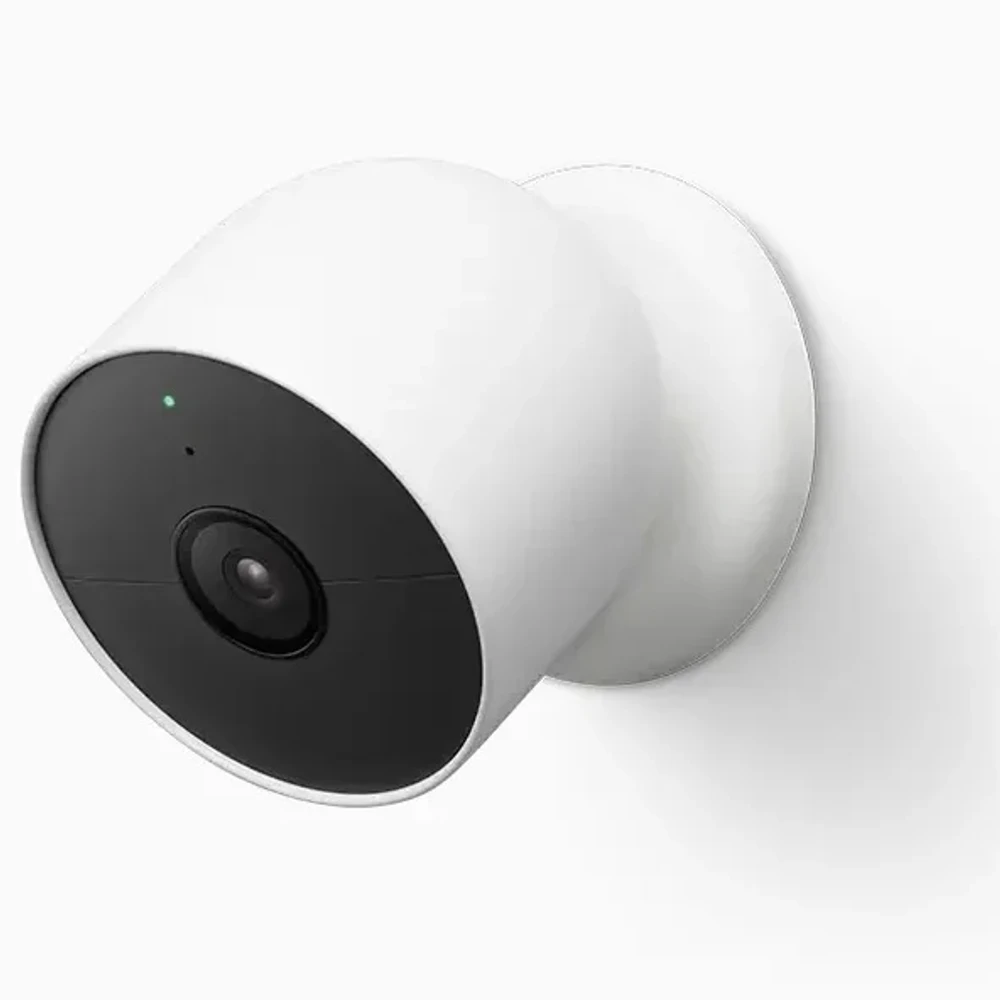
A security camera without internet can sometimes keep recording, provided it still has power and the right storage setup. Live viewing, playback and phone alerts have separate requirements. A camera that saves a clip during an outage may give you no way to watch it until the connection returns.
We checked Google and TP-Link's official documentation on October 23, 2026. The main example is the indoor/outdoor Nest Cam (battery) in our Google Nest Cam product record. Tapo provides a separate example of microSD recording. This is a documentation-based guide; AI Vitamin has not performed the outage tests described below.
Separate an internet outage from a Wi-Fi or power outage
Start by identifying what actually failed. Your broadband connection can go down while the router keeps providing Wi-Fi inside the house. Switching the router off removes that local network too. A camera with no remaining power cannot create a new recording.
The Nest Cam battery specifications require Wi-Fi, working broadband, the Google Home app and a Google Account. Its outage storage does not make it a camera designed for permanent offline use. Check your exact model before applying these instructions to an older Nest camera or a different wired model.
Power needs its own check. Unplugging an external cable from a charged Nest Cam (battery) leaves it running on its battery. That differs from exhausting its battery or disconnecting a camera that has no backup power. Record whether the camera itself, the router or both lose power.
For other device types, use our smart home and security directory to reach the relevant product pages and manufacturer instructions. Check each model separately.
Check recording, local viewing, and remote alerts separately
The matrix below applies to an already configured Nest Cam (battery), with the camera turned on. The first two rows assume it retains power. The last row assumes its network and power are working.
| What changed | New recording | Live view | Playback | Phone alerts | Recovery action |
|---|---|---|---|---|---|
| Internet connection lost; router still on | Limited event buffering | Unavailable while offline | New buffered clips await reconnection | No detection alerts during disconnection | Restore broadband and check uploaded events |
| Router or Wi-Fi switched off | Limited event buffering | Unavailable | New buffered clips await reconnection | No detection alerts during disconnection | Restore the network and check reconnection |
| Camera completely loses power | No new footage | Unavailable | Previously uploaded history is separate from new recording | No new activity detection | Restore camera power, network and recording settings |
| Paid subscription has ended | Free event-history allowance remains | Available while online | Up to 3 hours of free event history for this model | Included alerts remain; paid features depend on the tier | Check the active tier and retained clips |
Google's offline-camera troubleshooting page says an offline Nest camera cannot stream live video or save video to the cloud. Keeping your phone on the same Wi-Fi does not restore that Nest live stream. Switching the phone to mobile data does not reconnect the camera either.
TP-Link's US camera FAQ describes local live view and SD-card playback for configured Tapo cameras when the phone and camera share a wireless network, even without internet. It says SD recording can continue without that network, while app viewing and playback stop. Cloud services and notifications need internet. Confirm storage support for your model.
Google confirms that a camera cannot notify you about detected activity when home internet or Wi-Fi is down. An offline warning tells you about the connection failure. It does not prove that motion alerts from the disconnected camera are still arriving.
Understand temporary buffers and removable storage
Google's offline-storage explanation gives Nest Cam (battery) capacity for up to one hour of recorded events. That is clip storage, with higher quality and more activity filling memory faster. It gives no guaranteed duration of outage coverage.
You cannot directly access that internal memory. Saved events upload when the camera reconnects, then leave its internal storage. Check Google Home's Activity after recovery. For continuous recording, Google documents about eight minutes of continuous offline recording before switching to events when Nest Cam (battery) has external power and a 24/7 video-history subscription. Battery-only use does not meet those conditions.
For Tapo, the card must already be installed, formatted and recording configured. TP-Link says initial setup needs internet. A supported card is a separate item to check against the manufacturer's microSD compatibility guidance. If loop recording is enabled, older recordings can be overwritten as the card fills. Saving locally does not guarantee that every clip will remain indefinitely.
If a paid plan ends, check which history remains. Google's event and 24/7 history guide lists the battery Nest Cam's free three-hour event-history window and requires external power for 24/7 history. Three hours describes how far back the included history reaches, not three hours of continuous recording. Current paid plans are called Google Home Premium. Cancelling renewal leaves service active until the billing cycle ends, according to the official subscription page.
Run a controlled outage check at home
Use a short, planned check while you can reach the camera. The steps below let you record what your own setup does. Leave the account and factory-reset controls alone during the check.
- Write down the model, firmware, app version, power source and subscription tier. Check the battery charge or card status. Save any important existing clips before changing storage settings.
- Confirm a normal live view and create a simple event, such as walking through the configured detection area. Check that it appears in playback and note whether an alert arrives.
- Disconnect only the internet uplink using your router's documented method. Keep the router and camera powered. For a local-viewing check, keep the phone on that Wi-Fi and turn off its mobile data so it cannot silently use another route.
- Repeat the event. Note the time, try live view and playback, then record whether a detection alert arrives. Write down what happened, including failed attempts to view a clip.
- Restore internet. Confirm the camera reconnects and look for the event at its original time. Record missing footage, clip length and any delayed notification.
- If you also want to check loss of Wi-Fi, run that as a separate test. Restore the first connection before switching the router off. A full power-loss test is a third condition, and unplugging a battery camera does not create it.
Copy this record for each condition so the results remain comparable.
| Item to record | Your result |
|---|---|
| Camera model, firmware and app version | Fill in before testing |
| Power source and battery charge | Fill in before testing |
| Storage location, card status and recording schedule | Fill in before testing |
| Subscription tier and phone network | Fill in before testing |
| Exact connection or power condition changed | Fill in for this run |
| Event time and live-view result | Fill in during the outage |
| Playback access and alert arrival | Fill in during the outage |
| Reconnection time and recovered event clips | Fill in after recovery |
Keep your completed record with the model and software details. Repeat the relevant check after a major configuration change.