
ElliQ Caregiver App Guide to Family Access and Notifications
See what ElliQ family contacts can access, how invitations and caregiver notifications work, and what to agree on with a shared setup worksheet.
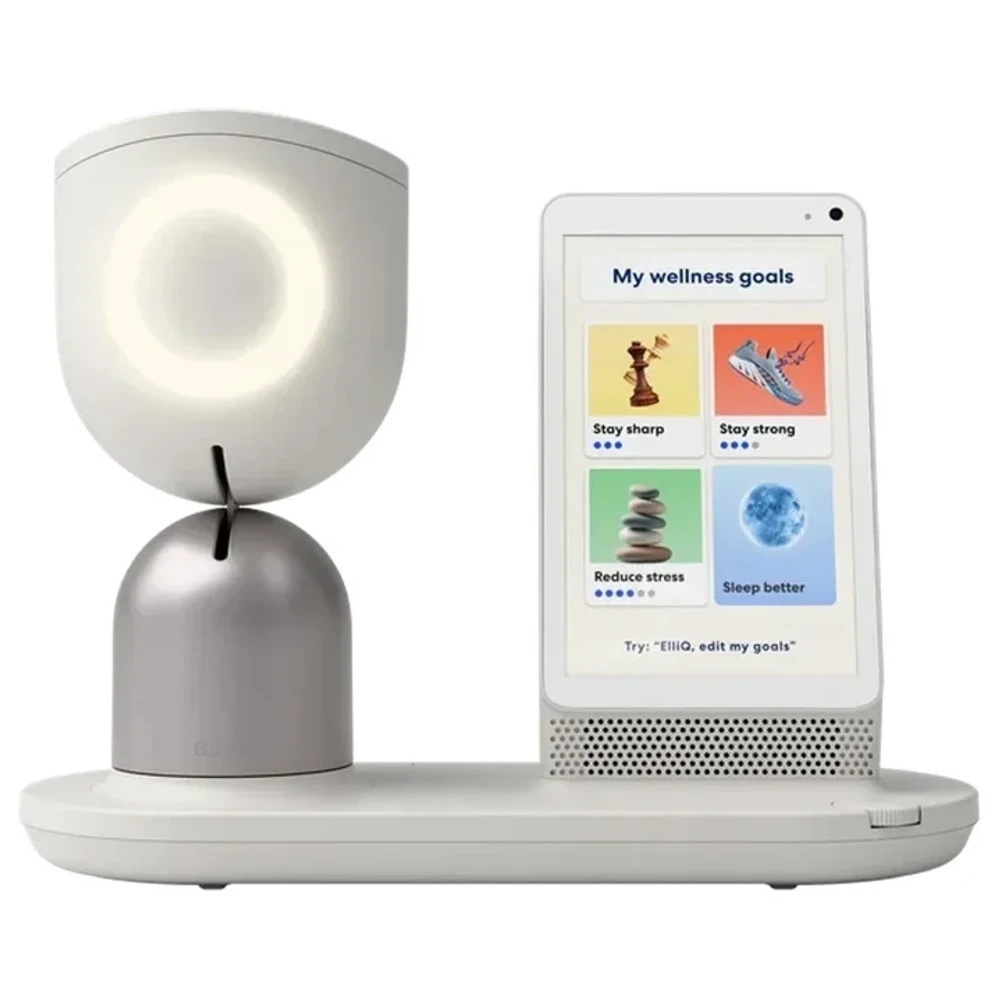
The ElliQ caregiver app lets a designated primary contact stay involved through communication, shared updates and everyday reminders. Other invited relatives can stay in touch too, but adding someone as a contact does not establish that they have the primary caregiver's full access. Start by agreeing who should receive which information with the person who will use ElliQ at home.
We checked ElliQ's current caregiver pages, app listings and privacy policy on November 15, 2026. This is a guide to the documented features and a setup discussion you can have together. We have not used a member account or tested an ElliQ device. Our ElliQ product page provides the hardware and membership reference.
Agree on Who Uses ElliQ and Who Receives Updates
ElliQ's caregiver FAQ describes a caregiver as the primary contact with access to the full caregiver app. It also allows additional family members or trusted contacts to communicate with the ElliQ member. Those are different roles. Choose the primary contact by who the member wants involved and who can realistically follow up.
Write down the member's preferred primary contact and a backup who can help if that person is unavailable. The relative who buys the membership or sets up Wi-Fi may be someone else. Ask the member directly who should receive personal updates.
Find the ElliQ Connect app
ElliQ markets the family experience as the Caregiver App, while its official download links lead to ElliQ Connect App on the US App Store and ElliQ Connect on Google Play. Check that the developer is Intuition Robotics and use the links from ElliQ's site or your invitation.
The Android listing says you must already be saved as a contact on an ElliQ to use the app. Installing it by itself does not connect you to a relative's device. The iPhone listing currently requires iOS 15.6 or later. Check compatibility from the actual iPhone or Android phone before setup.
ElliQ's general FAQ gives the invitation sequence. The member can say “ElliQ, add a contact” and follow the prompts. The invited person receives a text message with download instructions. Complete that process together, then confirm which person is designated as the primary caregiver. If the invitation or role is unclear, ask ElliQ support before assuming the connection is finished.
The older adult uses the ElliQ unit to communicate; ElliQ says they do not need a separate phone or computer for that. The relative uses the companion app on their own compatible device.
Check What the Caregiver App Can Show and Send
Use the following table to decide what to check during setup. These are manufacturer-documented capabilities, with practical checks for your account. They are not results from our own device trial.
| Function | What ElliQ documents | Check together |
|---|---|---|
| Calls and photos | Video calling and sending photos to the member's display | Place a short call and send an ordinary photo. Confirm the right person receives each |
| Messages and memories | The How It Works page describes messages, videos and shared memoir content | Agree which stories or photos the member wants to share, then open one chosen item together |
| Last activity | The caregiver page lists a view of when the member was last active | Read the label and time shown. Establish what that item represents before using it to decide whether to call |
| Well-being updates | The FAQ describes optional notifications to the primary contact when the member reports pain or feeling unwell | Confirm that the member wants these updates and that the intended recipient has access |
| Reminders | The iPhone release history describes Medication and General reminders sent as suggestions for the member's approval | Suggest a harmless general reminder, then check its acceptance and status on both sides |
| Wellness goals | The iPhone release history describes suggested weekly goals that become active after acceptance on ElliQ | Review one suggestion on the unit and check whether it becomes active only after the member accepts |
The iPhone release history also describes push updates and an in-app notifications area. Test both on the recipient's phone. Check the app entry and the phone alert separately. If the expected push alert is missing, inspect notification permission and quiet-mode settings.
For ElliQ caregiver notifications, ask what triggers each update, who receives it and whether the member can change that sharing choice. The public pages we reviewed do not provide a complete notification-by-notification permissions table. They also do not establish that every ordinary contact sees the same dashboard or that an alert escalates automatically to another relative. Confirm those details with support for your account.
Read activity and medication status carefully
A last-active entry concerns activity associated with ElliQ. It cannot establish what the person is doing elsewhere in the home. A quiet afternoon could include a visit, a nap or time away from the device. Those are possible explanations to check by contacting the person, not facts a timestamp can tell you.
Treat a reminder status as information from the system's recorded workflow. It is not direct observation that someone swallowed a medication. Use the existing medication instructions when setting reminders, and ask the member or their usual care team about a discrepancy rather than changing a dose through an app discussion.
A practical first rehearsal is to send a photo, exchange a message and try a call. Then test one agreed reminder. Note what each phone actually shows, including which controls are absent for an ordinary contact. Use harmless content for the rehearsal; there is no need to report a false symptom to test a connection.
Review Sharing Choices Together
Sit beside the ElliQ unit while the primary contact has the app open. Read sharing prompts aloud if that helps, and let the member make each choice.
ElliQ's FAQ says family updates are enabled and directed by the user. The privacy policy, updated January 1, 2026, separately describes the company's collection and processing of interaction, usage and health information. A relative's dashboard access and the company's handling of data are different questions. Read the policy when deciding whether the service suits you; the family sharing controls do not describe every use of data by the provider.
The policy allows users to withdraw consent and directs questions about data access, correction or deletion to support. If you want to change a caregiver or stop a particular update, ask support to identify the current control and confirm what changes. Write down that method after checking it. Do not assume that silencing a phone notification removes someone's access, or that changing family sharing deletes information already held by the provider.
Copy this family setup sheet
Keep a copy where the member and agreed contacts can find it. This is a discussion worksheet; make the actual account and sharing changes through ElliQ's controls or support.
| Decision | ElliQ member's choice | Primary contact's task | Other relatives and review note |
|---|---|---|---|
| People and roles | Name the chosen primary contact | Confirm the role on the account | List additional contacts and check their actual access |
| Calls, messages and photos | Choose who may contact you and what you want to share | Complete one agreed communication test | Record who was invited and whether the invitation worked |
| Activity and personal updates | Record each update you agree to share, including anything you decline | Confirm which approved updates are visible and delivered | Do not assume identical access for everyone |
| Reminder suggestions | Agree which reminders you want | Send a test general reminder and check acceptance | Name the person who will check future changes |
| Wellness goals | Accept or decline each proposed goal | Confirm the accepted goal appears correctly | Record a review date chosen by the member |
| Changing your mind | Record how you will request a change | Find the current setting or confirm the process with support | Recheck access after changing a role or sharing choice |
| No reply or no connection | Choose a normal contact method and a nearby backup | Agree who calls or visits and when | Keep emergency instructions separate from app updates |
A hypothetical filled example
The following family is invented to show how to use the sheet. Its requested permissions still need to be checked on the real account.
Ruth chooses her daughter Maya as the primary contact. Her son Leo is invited for calls and photos. Ruth wants to discuss pain-related updates with Maya, but has not agreed to share activity information with Leo. They record those as their requested choices and check the available controls before enabling anything. If ElliQ cannot provide that arrangement, they revisit the choice with support rather than mark it as configured.
Maya suggests a reminder for Ruth's weekly library call. Ruth reviews it on ElliQ and decides whether to accept it. They check the displayed status together. Their sheet records Maya as the person who will help change the reminder, with the verified setting or support route beside her name.
They also write down a fallback. If Maya is concerned and Ruth does not answer a normal phone call, Maya contacts their agreed nearby backup. Leo does not treat a missing app update as proof that an emergency has occurred. The family decides its follow-up arrangement directly; they do not assume ElliQ operates it for them.
Plan for Internet, Power, and Emergencies
ElliQ's FAQ lists English-language service in the United States and requires Wi-Fi and power. Check conditions for the intended home; an app download alone does not establish service availability abroad.
During setup, confirm that the device reconnects and that calls work from the location where it will stay. Put the Wi-Fi details and the person who can help with a connection fault somewhere the member can access. If a power or internet outage prevents communication, use the separate phone or in-person contact arrangement written on the sheet.
ElliQ is not an emergency device. Its FAQ directs US users to call 911 in an emergency. Keep emergency help separate from app updates. Product support is listed for weekdays, 9 a.m. to 5 p.m. Eastern Time, at (855) 888-1295 or help@elliq.com.
Return to the ElliQ device and membership listing to check the product reference, or browse home and companion robots for other hardware categories. Keep the completed family sheet with your normal contact details and revisit it when the member's preferences or primary contact change.
Official sources checked
- ElliQ caregiver features and primary-contact definition
- ElliQ invitations, sharing, US availability and emergency FAQ
- ElliQ Connect App for iPhone and its developer release notes
- ElliQ Connect for Android and the saved-contact requirement
- ElliQ's family communication features and official app links
- ElliQ privacy policy and support route for data requests