
AI Voice Recorder vs Phone App for Meetings and Calls
Compare an AI voice recorder vs phone app for meetings and calls. Check recording controls, mic placement, battery, offline transcription, exports and costs.
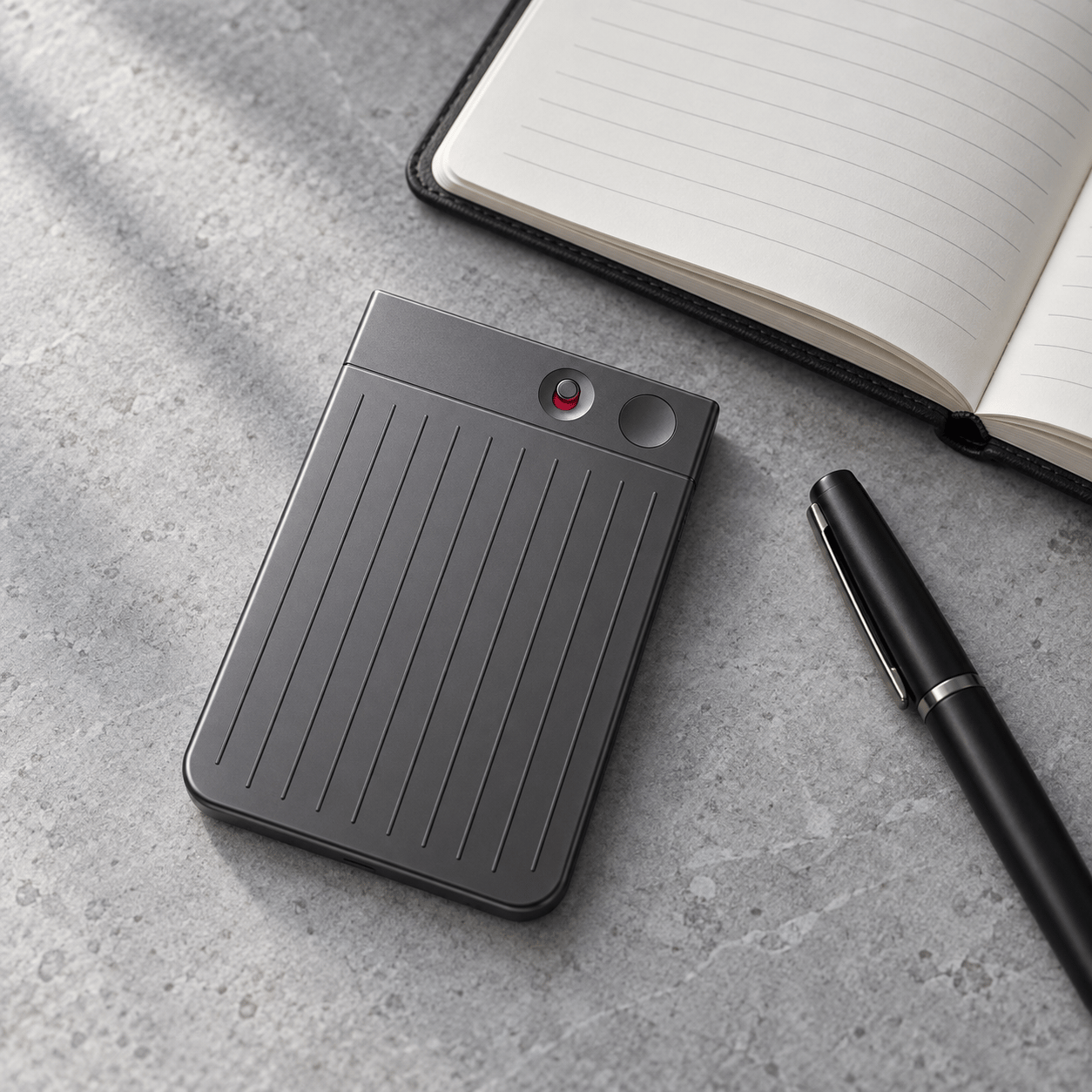
Start with the recorder already on your phone. A dedicated AI voice recorder is worth considering when you need a physical recording button or want to leave a microphone on the table while using your phone. A specific call-recording requirement may also justify the purchase, provided the recorder supports your setup.
We checked Apple, Google and Plaud support documents on October 13, 2026, to compare the original PLAUD Note, Google Pixel Recorder and iPhone Voice Memos. This guide covers their documented features and gives you a checklist to try yourself. We have not measured their audio quality or transcription accuracy. The cover is an illustration from our existing device guide.
AI Voice Recorder vs Phone App at a Glance
You can already get speech-to-text on supported phones. Voice Memos transcribes recordings on iPhone 12 and later, with language and regional limits. Google Recorder also provides transcription on supported Pixel devices. Before buying hardware for AI meeting notes, check what your current phone can do in the language you actually use.
| Decision | Phone recorder app | Dedicated recorder such as PLAUD Note |
|---|---|---|
| Starting a recording | Use the app or a shortcut supported by your phone | Select the correct mode and hold the physical Record button |
| Microphone position | The phone must stay where it can capture the speakers, unless you use a supported external microphone | A separate unit can stay on the table while the phone is in your hand |
| Phone calls | Check the separate call-recording feature for your phone and region | Note has a phone-call mode with attachment and audio-routing requirements |
| Battery planning | Recording shares the phone's battery with your other work | A separate battery adds recording capacity and another charging task |
| Offline use | Depends on the app and feature; Pixel's initial transcription uses on-device processing | Note stores audio locally; transfer and AI processing follow afterward |
| Getting files out | Check audio and transcript export separately | Plaud offers separate audio, transcript and summary exports |
| Cost | An existing phone and included app may meet the task without a new purchase | Add hardware and any paid software or extra transcription you need |
For comparisons among wearable and dedicated devices, see our AI note takers guide for meetings and everyday memory.
Compare the Action That Starts Recording
The original Note has a slider for in-person or phone-call mode. Plaud's recording instructions say to hold Record for one second to start; one vibration confirms capture. Hold it again to stop; two vibrations confirm the end. Check the slider before the conversation begins because the selected mode applies to that recording.
A physical button lets you start without opening an app, although you still have to remember to press it. Try your phone's recording shortcut too. The useful comparison is how easily you can start and confirm a recording on each device.
Google's Recorder guide says recording continues when the screen sleeps. Apple says you can use another app while Voice Memos records, but playback from that app stops the recording. Test the apps you need to use during a session, especially if you expect to play a video or other audio.
Microphone Placement Can Decide the Purchase
If your phone can remain on the table throughout a conversation, a second device may add little to your routine. If you need the phone in your hand to consult documents, a separate recorder lets you keep the microphone in one position.
Apple recommends moving the microphone closer to or farther from the source to adjust recording level. Voice Memos can use the built-in microphone, a supported headset or an external microphone. An external microphone is another option to check before buying a complete recorder system.
To compare sound quality, record the same consenting speaker from the positions you would actually use. Listen to quieter passages and check the transcript against the audio, including an unfamiliar name or a number. Testing your own voice close to the microphone tells you little about a person speaking from the other side of a table.
Phone Call Recording Needs Its Own Check
The call app and whether you listen through the phone or a headset both affect your recording options.
Apple provides a call-recording workflow in Phone and Notes where supported. Both participants hear an audio notice, and the recording is saved in Notes. Check availability for your region and language separately from Voice Memos.
Plaud's WhatsApp call instructions for Note require the recorder to be attached to the phone's back with Phone Call mode enabled. The same page says earbuds and headphones, including AirPods, are unsupported during call recording. That limit matters if a headset is part of your normal working day.
Note also requires you to start call recording manually, so you need to press Record for each call you want to keep.
Before relying on either setup, make a short call with a participant who has agreed to the recording. Use your normal call app and audio output, then play back both voices. Get permission before recording others and follow the applicable rules and workplace policy.
Separate Battery Life From Offline AI
Plaud specifies up to 30 hours of continuous recording for a fully charged original Note. Treat this manufacturer rating as a starting point for charging plans. To compare it with your phone, you need to account for the phone's other work during that time, such as navigation and calls.
Google permits up to 18 hours in one Recorder recording. This limits the length of a recording; it gives no assurance that the phone's battery will last 18 hours. It cannot be compared directly with Plaud's battery rating.
The original Note can capture audio locally without maintaining a phone connection. Plaud describes transfer and AI processing as subsequent steps, so plan to connect and sync for transcription and summaries. Local audio capture alone does not provide an offline transcript.
Pixel Recorder's initial transcription uses an on-device Google service. Its transcription documentation explains that Transcribe again can process audio on Google servers. Summary support and connectivity requirements vary by device and language. When working without internet access, check which of these steps your setup can complete.
Export a File Before Committing to the Workflow
Keep the source audio so you can check a name, amount or decision against the spoken sentence. A summary may leave out the detail you need.
Plaud's export documentation lists MP3 audio on the web, with WAV available in the app. Transcripts can be exported as TXT, SRT, DOCX or PDF, and summaries as TXT, Markdown, DOCX or PDF. Transcript exports offer timestamp and speaker-label controls.
Pixel Recorder can share audio and transcript files or send text to Google Docs. Google says recordings remain on the device unless you choose a route such as backup or sharing. Review those settings before your first session.
Open one exported audio file outside the recording app, then open its transcript in the editor you use for work. Check the timestamped export if you need captions, or the plain text if you need searchable notes. A share link may still depend on an account or permission setting, so make sure you can download the files you need.
For either setup, check where audio goes when transcription or backup is enabled. A recorder that stores audio locally may still use cloud services for later steps. Our guide to deleting data before selling an AI device explains what to check when you eventually pass a device on.
Count Software Costs Separately
An included phone app that meets your requirements saves you a hardware purchase. A third-party app may still charge for transcription or storage, so compare the service you intend to use.
Plaud's current plan comparison lists a Starter allowance of 300 transcription minutes per month and paid options. Work out which recordings you need to transcribe before deciding whether to pay for more minutes.
Use current prices for your region and count the accessories you still need to buy.
First-year cost = hardware + required accessories + annual software charges + expected extra processing charges
Our AI recording-device guide compares devices and plans in more detail. Before choosing one, work through the checklist below with the phone you already have.
Run a Short Phone-First Trial
Use this blank checklist for your own test in a normal working setting, with permission from anyone you record.
| Check | What to do | Your result |
|---|---|---|
| Start and confirmation | Start from your usual locked-phone state; verify that capture began | __________ |
| Placement | Record from the intended location; listen to the quieter speaker | __________ |
| Other phone use | Try the document or app activity needed during the session | __________ |
| Calls, if needed | Use the exact call app and audio output; check both voices | __________ |
| Offline work | Check capture and transcript availability separately without internet | __________ |
| Battery | Note the starting charge, session duration and ending charge | __________ |
| Export | Open the audio and text outside the recorder app | __________ |
If the phone completes the job, keep using it. If you are choosing a dedicated AI recorder or phone upgrade, write down the problem that purchase needs to solve. Use the PLAUD Note specifications and limitations to check whether it addresses that problem, including its call-recording restrictions if you normally wear a headset.
Sources and Editorial Note
Reviewed October 13, 2026. Key references are Plaud's Note recording guide, its call restrictions and export guide, Google's Recorder help, and Apple's Voice Memos recording and transcription instructions. Other sources are linked beside the relevant claims. Device, app, language and regional requirements can change.